
Rotate Object in Photoshop Beta
Eron Mahmuti
Turning Flat 2D Layers into Dynamic 3D Composites
Photoshop is adding a powerful new twist to its compositing workflow with the Rotate Object feature in Photoshop Beta. In short, you can take a flat 2D layer, turn it into a 3D object, and control its direction and perspective with precision. It’s the kind of capability that changes what’s possible when you’re compositing scenes.
What Rotate Object does for you
- Converts a flat layer into a low-resolution 3D representation (a Gaussian Splat made of points) that’s fast to manipulate.
- Lets you adjust the direction and perspective of your subject, which was almost impossible with traditional 2D layers.
- Integrates the 3D transformation back with your original 2D layer, producing a cohesive result when you finish.
How it works (step-by-step)
1) Start by placing a photo in another Photoshop document (or simply open the photo you want to work with).
2) Remove the background if you can, or let Rotate Object automatically remove it for you.
3) Transform the object (Cmd+T on macOS, Ctrl+T on Windows, or use a transform handle with the Move tool).
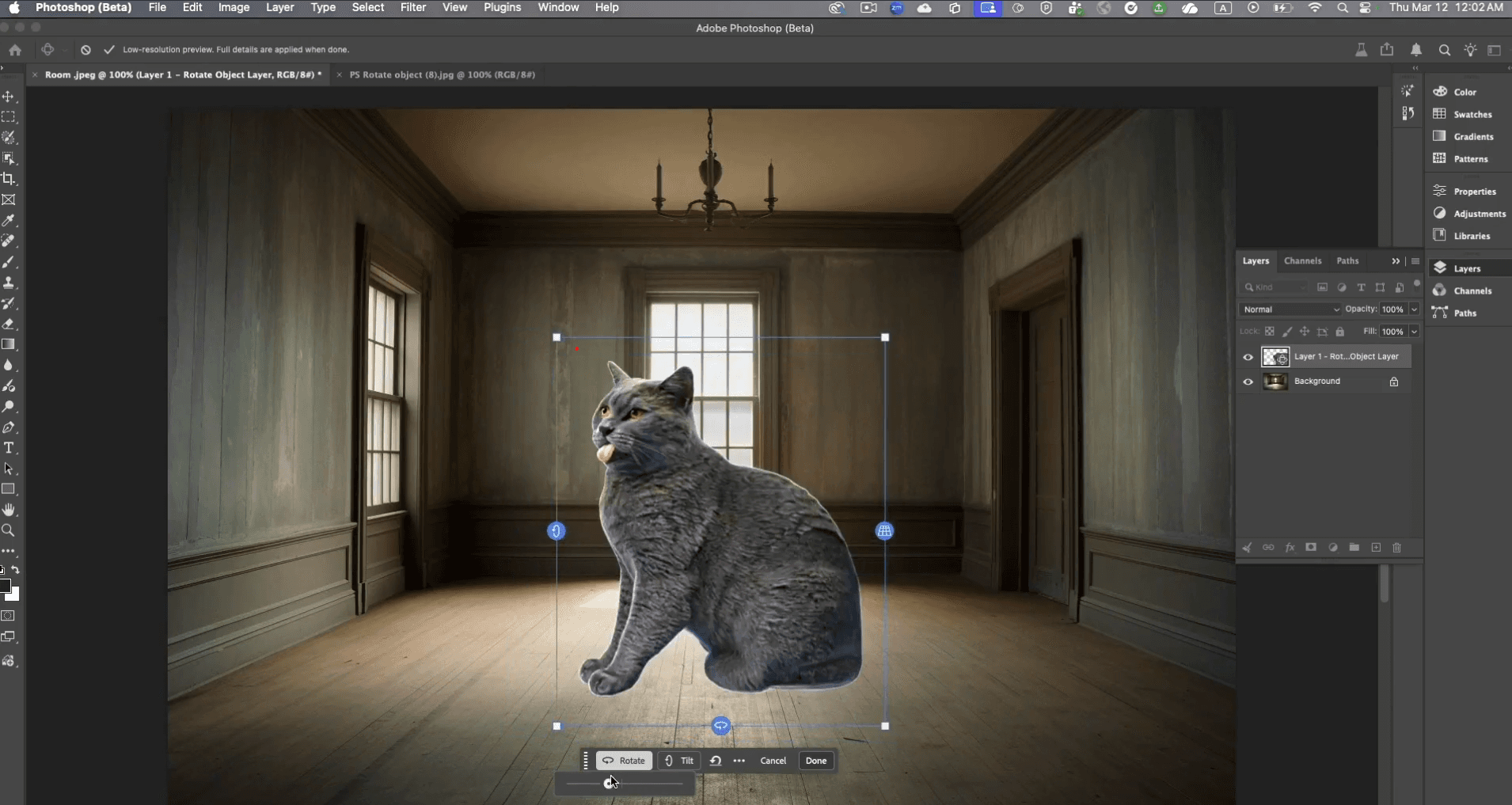
4) In the Contextual Taskbar, click Rotate Object. Photoshop creates a low-resolution 3D version of the flat layer (the Gaussian Splat). Although low resolution, this model is fast to manipulate and provides true 3D control.
5) Use the controls in the Contextual Taskbar, the handles on the sides of the 3D object, or, in my experience, click and drag with the right mouse button held down for the most control. You can also rotate the object the traditional way to set the angle.
6) Click Done in the Contextual Taskbar. Photoshop then upscales the image by combining the low-resolution 3D model with your original 2D layer, yielding a powerful, integrated result. For example, in a car image, the license plate can rotate in 3D space without mirroring.
7) If you want to edit the rotation later, simply transform again and click Edit Rotation.
8) Want to better fit the subject to the scene? Click Harmonize in the Contextual Taskbar. Photoshop will adjust lighting and generate shadows to help match the environment.
A few quick takeaways
- This feature dramatically broadens the compositing toolkit by giving you genuine 3D control over 2D layers.
- The workflow emphasizes non-destructive experimentation: you can re-enter rotation and refine until it sits just right.
- Harmonize is a valuable finishing touch for lighting and shadows, helping the subject feel like part of the scene.
Tips for getting the most out of Rotate Object
- Start with well-masked subjects. Automatic background removal can help, but clean edges still make the final result cleaner.
- Use the right-click drag method for the most nuanced control over the 3D transformation.
- Play with Harmonize to ensure lighting and shadows match the rest of the scene; it can make a big difference in realism.
- Remember that the initial 3D model is low-resolution by design for speed; the final result combines this with your original 2D layer for a strong composite.
Why this matters for your workflow
- The Rotate Object feature adds a new dimension to how you build scenes in Photoshop. You’re no longer limited to flat, facing-forward elements; you can tilt, rotate, and recede layers in 3D space with relative ease.
- It complements existing tools in the Photoshop toolkit, offering a powerful way to reposition subjects and integrate them more believably into varied environments.
Try it today
- If you want to experiment with Rotate Object, download the new Photoshop Beta in the Creative Cloud app (available today).
- For a touch of lighthearted engagement, you can leave a comment like “grumpy cat” and you’ll still get access to download it yourself.
A quick note
- As with any beta feature, results can vary and small quirks or changes may occur as the software evolves. If you’re exploring this now, it’s a great opportunity to experiment, test edge cases, and share your feedback with the Photoshop team.
Bottom line
Rotate Object in Photoshop Beta is a notable addition that reshapes the way you approach compositing. It gives you tangible control over 3D perspective on a 2D layer, with options to auto-remove backgrounds, fine-tune rotation, and harmonize lighting. If you’re looking to push the realism and flexibility of your composites, this is definitely worth trying.
By Eron Mahmuti
Share this article